Java Basics
Java Environment Setup
Before writing your first Java program, you need to set up your development environment. This lesson guides you through downloading the Java Development Kit (JDK), configuring environment variables, and verifying the installation.
Quick answer
How do I set up Java on my computer?
To set up Java, download and install the latest Java Development Kit (JDK). Then, configure the JAVA_HOME and Path environment variables so your operating system can locate the Java compiler (javac) and runtime (java).
What you will learn
- How to download and install the Java Development Kit (JDK).
- How to set up the
JAVA_HOMEandPathvariables on Windows. - How to verify that Java is installed correctly using the command prompt.
Step 1: Download the Java Development Kit (JDK)
To develop Java applications, you need the Java Development Kit (JDK). It includes the Java Runtime Environment (JRE), the Java compiler (javac), and other essential tools.
There are several popular JDK distributions. The most common ones are:
- Oracle JDK: The official commercial JDK from Oracle.
- OpenJDK: The open-source reference implementation of Java.
- Eclipse Temurin: A highly recommended open-source JDK built by the Adoptium community.
For most learners and developers, OpenJDK or Eclipse Temurin is the best choice because it is entirely free and open-source.
Step 2: Install the JDK
Installing the JDK is similar to installing any standard software application on your operating system.
Installing on Windows
- Run the downloaded
.msior.exeinstaller. - Click Next and accept the default installation path (usually
C:\Program Files\Java\jdk-xx). - Wait for the installation to finish and click Close.
Installing on macOS
- Download the
.pkgfile for macOS. - Double-click the file and follow the installation wizard.
- The JDK will be installed in
/Library/Java/JavaVirtualMachines/.
Installing on Linux (Ubuntu/Debian)
You can easily install OpenJDK using the APT package manager:
sudo apt update
sudo apt install default-jdk
Step 3: Set up Environment Variables
You must configure environment variables so that your terminal or command prompt recognizes the java and javac commands from any directory.
Setting the PATH on Windows
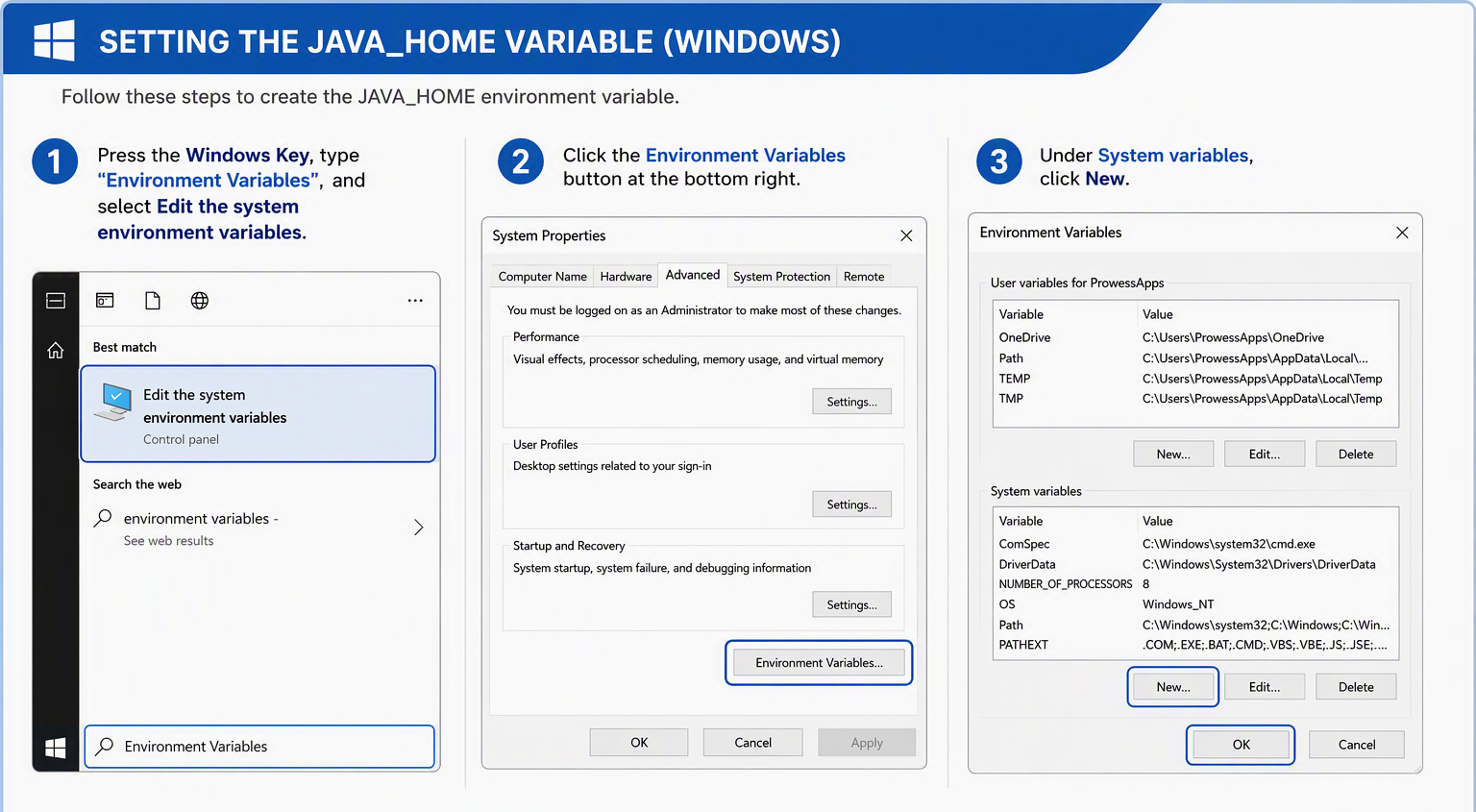
Setting the JAVA_HOME variable
- Press the Windows Key, type "Environment Variables", and select Edit the system environment variables.
- Click the Environment Variables button at the bottom right.
- Under System variables, click New.
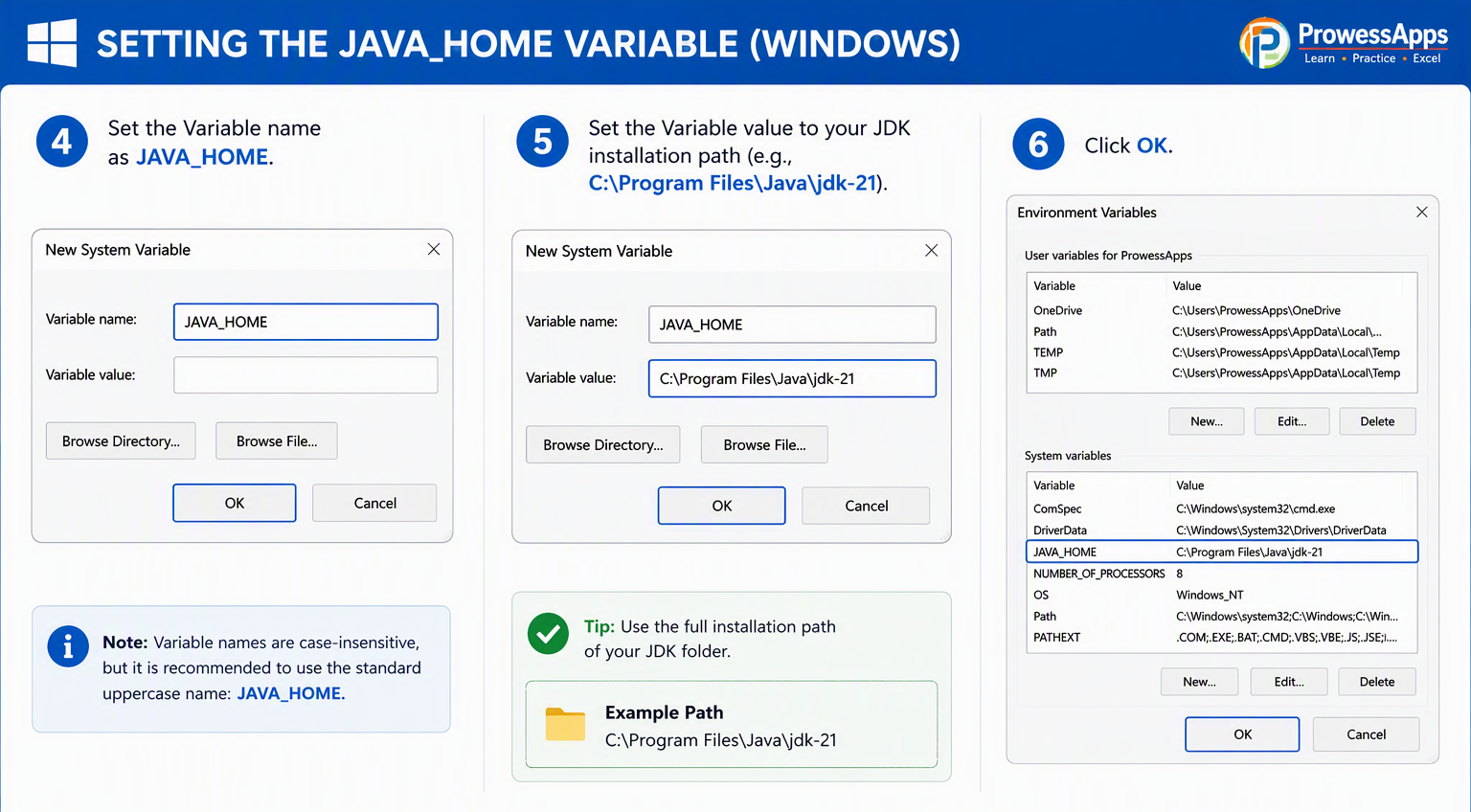
- Set the Variable name as
JAVA_HOME. - Set the Variable value to your JDK installation path (e.g.,
C:\Program Files\Java\jdk-21). - Click OK.
Updating the Path variable
- In the same System variables list, find the variable named
Pathand click Edit. - Click New and add the following text:
%JAVA_HOME%\bin. - Click OK on all open windows to apply the changes.
Setting the PATH on macOS and Linux
On Unix-based systems, you can add the JDK to your PATH by modifying your shell configuration file (like ~/.bashrc or ~/.zshrc).
export JAVA_HOME=/usr/lib/jvm/default-java
export PATH=$JAVA_HOME/bin:$PATH
Step 4: Verify the Installation
To ensure that Java is installed and configured correctly, you need to verify it using your terminal or command prompt.
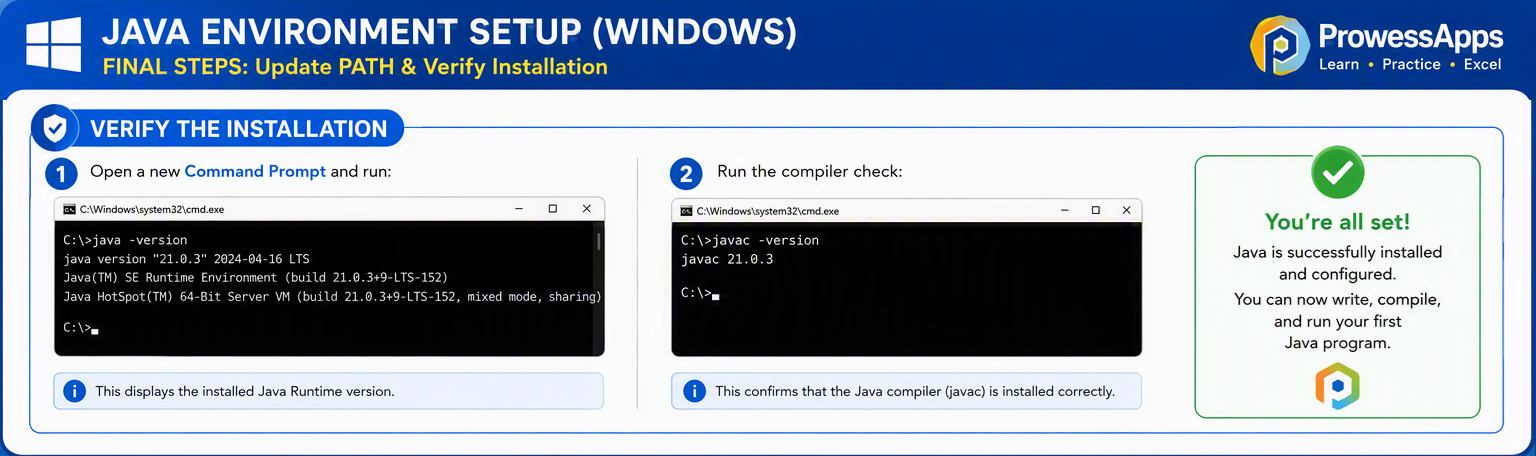
- Open a new Command Prompt (Windows) or Terminal (macOS/Linux).
- Type the following command to check the Java Runtime version:
java -version

# Expected output:
# openjdk version "21.0.1" 2023-10-17 LTS
# OpenJDK Runtime Environment (build 21.0.1+12-LTS)
# OpenJDK 64-Bit Server VM (build 21.0.1+12-LTS, mixed mode, sharing)
If installed correctly, it will display the installed Java version. Next, verify the Java Compiler:
javac -version

# Expected output:
# javac 21.0.1Path environment variable correctly.
Frequently asked questions
Do I need both JDK and JRE?
No. Modern JDK versions (Java 11+) include everything you need to compile and run Java applications. You do not need a separate JRE installation.
What is JAVA_HOME used for?
The JAVA_HOME environment variable tells other programs (like Maven, Gradle, or Tomcat) where the Java Development Kit is installed on your computer.
Why does "javac is not recognized" appear?
This error occurs because the JDK bin folder is not in your system Path variable. The command prompt cannot find the Java compiler.
Lesson summary
- The Java Development Kit (JDK) is required to write and compile Java programs.
- JAVA_HOME is an environment variable that points to your JDK installation directory.
- Adding
%JAVA_HOME%\binto your system Path allows you to run Java commands from anywhere. - Use
java -versionandjavac -versionto verify that Java is installed and configured correctly.
Check your knowledge
Free learner features
Save your learning progress
Sign in to mark lessons as completed, save your Java learning progress across devices, and participate in lesson discussions.
Sign in to track progressDiscussion
Ask questions, share suggestions, or discuss this lesson.
No approved comments yet. Start the discussion by asking a helpful question.
